In this post I will be creating a basic mileage claims app which runs from data in a SharePoint list. The cascading drop downs will allow a user to choose their Start and End locations, with the End location filtering based on the start location.
For the SharePoint database, I have a record for each possible start location, end location (single line of text), and distance (number).

From this data, we want the user to first select their start location from the drop down in the App, and then choose their end location.
Create a new blank app in PowerApps, and connect to the SharePoint list data source.
For the start and end locations, create and rename two labels, and two drop down fields. For reference, I have named the drop downs DD_start, and DD_end
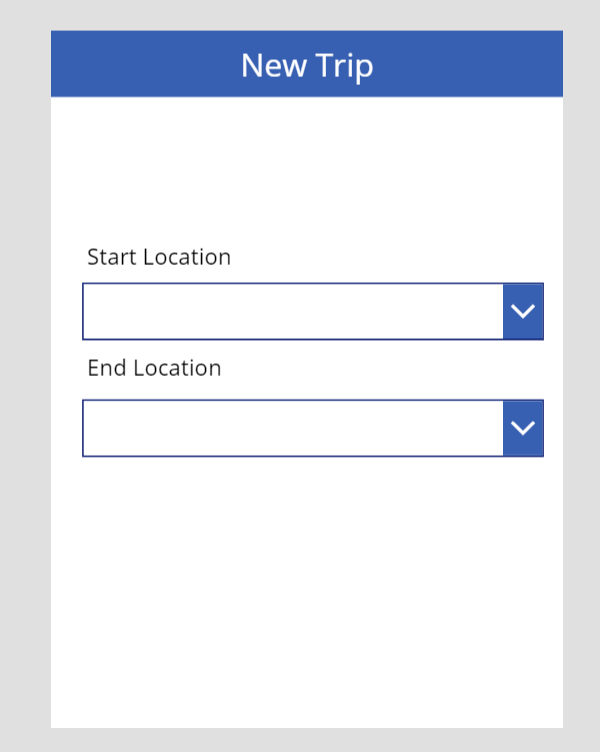
To connect the start location drop down to the data source, change the Items property to Distinct(SPdatasource, 'Start Location') We use the Distinct function to ensure only the Start Location value is pulled back.
The end location drop down will require some additional formatting as we need to filter what is returned by the start location. To do this, edit the Items property to Distinct(Filter(SPdatasource, 'Start Location' in DD_start.Selected.Result), 'End Location')
Here we are filtering by the selected result in the start location drop down, and returning the end location.
The last piece of data we need to pull back from this list is the distance, so we will need to add another drop down field to pull back the value from the previous two filters.
The drop down will only show the one possible value, therefore won’t actually function as a drop down, however this is required as a workaround to pull the data from one SharePoint list to another (which I will cover in a later post).
Pull back the distance by editing the Items property for the drop down:
Distinct(Filter(SPdatasource,'Start Location'=DD_start.Selected.Result&& 'End Location' =DD_end.Selected.Result), Distance)

Play the app, and you will see that the distance will change based on the selections above.
This drop down can now be hidden as the user does not need to see calculation. To do this, change the Visible property of the drop down to false
We have now completed adding the cascading drop downs for the Mileage Claims app. In the next post, I will detail how we can calculate the claim amount in £s, and let the user toggle whether the journey is a return trip.

 Power Platform Blog